
Q: Why can't my computer find the printer or connect to the printer after installing the driver?
A:When installing or using the printer driver on Windows, a Windows Security Alert may appear:
The driver version may update.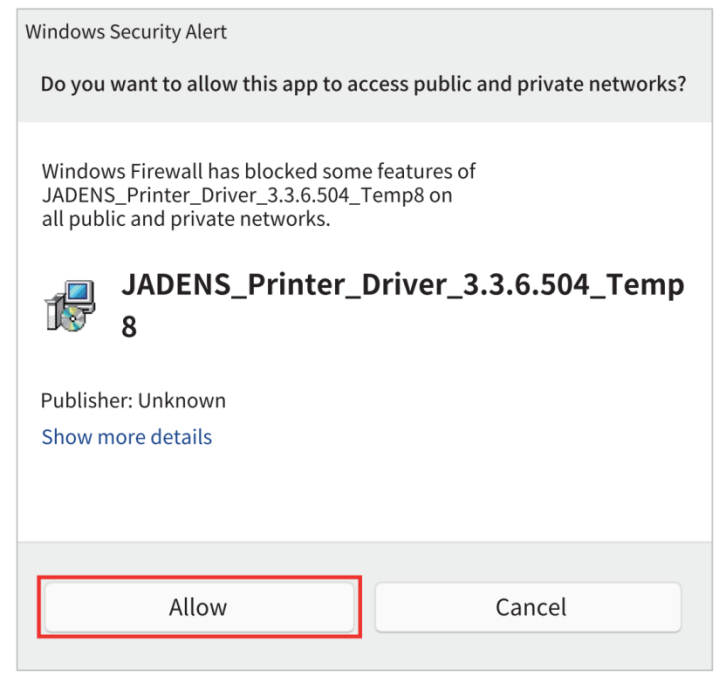
To search the network printer,
If you click Cancel, Windows Firewall will block the printer driver from communicating through the network. As a result, you may experience issues such as:
* The driver cannot find the printer during network search.
* The printer cannot be added by IP address.
* Printing through Wi-Fi/LAN connection does not work.
This issue mainly affects Wi-Fi and LAN printing. USB printing is usually not affected.
Solution 1: Allow the Printer Driver Through Windows Firewall
Follow the steps below to manually add the printer driver to the firewall allow list.
Step 1: Open Windows Firewall Settings
1. Press Windows + R on your keyboard.
2. Type: firewall.cpl
3. Press Enter.
The Windows Defender Firewall window will open.
Step 2: Open Allowed Apps Settings
1. Click Allow an app or feature through Windows Defender Firewall on the left side.
2. Click Change settings at the top right.
Step 3: Allow the Printer Driver
1. Find the printer driver in the application list.
It may appear as: JADENS Printer Driver Or JADENS_Printer_Driver_x.x.x.x
2. Enable ☑ Private
Then click OK
Step 4: Restart the Printer Driver
1. Close the printer driver.
2. Open the printer driver again.
3. Search for the printer or add the printer again.
The printer should now be detected normally.
Solution 2: Add the Printer Driver Manually (If It Is Not Listed)
If the printer driver does not appear in the allowed apps list:
Step 1: Open Firewall Allowed Apps
Go to: Control Panel > Windows Defender Firewall > Allow an app or feature through Windows Defender Firewall
Step 2: Add the Application
1. Click Allow another app...
2. Click Browse...
3. Select the printer driver .exe file.
Example: JADENS_Printer_Driver.exe
4. Click Add
Step 3: Enable Network Access
1. Check:☑ Private
2. Click OK
Note
If the printer still cannot be found after allowing firewall access:
Please check:
1. The printer and computer are connected to the same Wi-Fi network.
2. The router does not enable:
   * AP Isolation
   * Client Isolation
   * Guest Network Isolation
   * Wireless Isolation
3. Restart both the printer and computer.
4. Try adding the printer again.